 Miravo
Integrations
Connect Litmus Edge targets once, then review every apply and clean up. Sending a template happens on the Factory page.
Integrations connects a running factory to Litmus Edge. Miravo creates the devices, tags, Digital Twins models, and instances for you, and keeps them linked to live data.
This page is where you connect targets and review activity, in two tabs: Targets and Activity. Applying and cleaning up happen on the Factory page, described below.
Targets
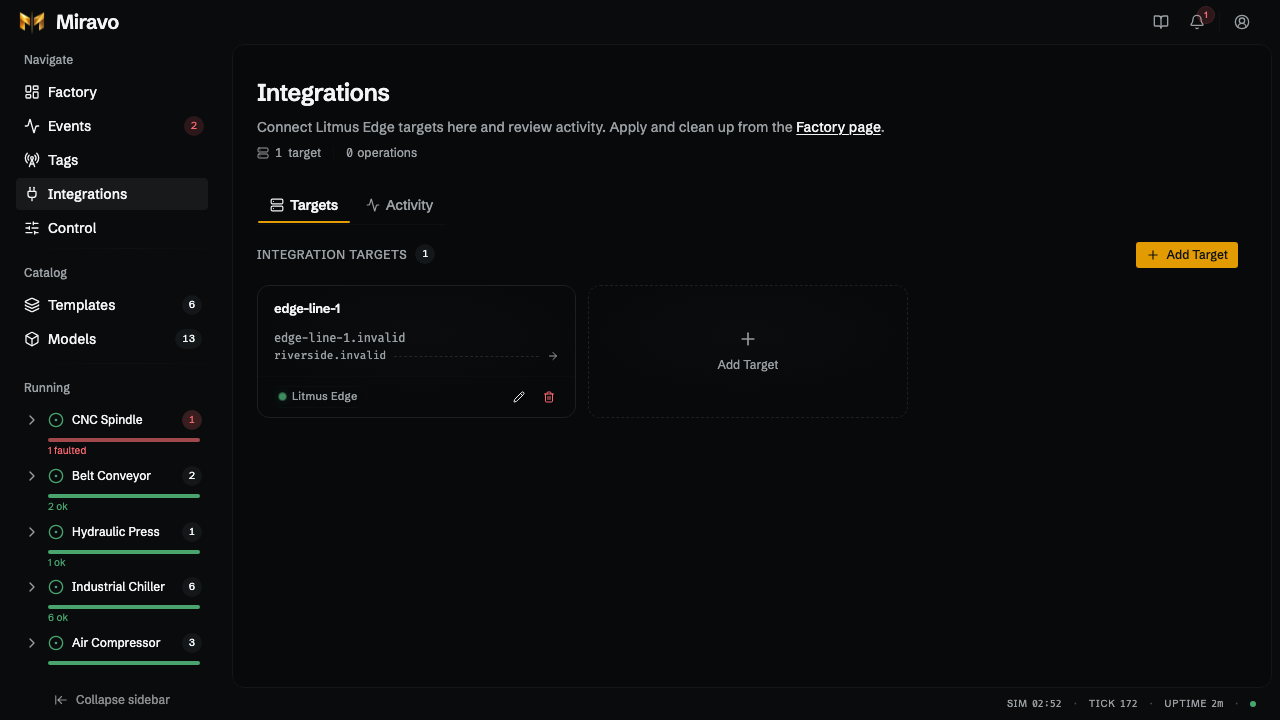
A target is a saved Litmus Edge connection. Click Add Target and enter:
- Hostname: the Litmus Edge address.
- Source host (Miravo): the address Litmus Edge uses to reach Miravo. It must work from the Litmus Edge network, not only from your browser.
- API token: stored on the server, never shown again.
Click Test connection, then Add Target. Targets are shared with the CLI (miravo le apply --target <label>). Each target card has edit and delete buttons.
Send to Litmus Edge
Apply and clean up happen on the Factory page, on its Integrations tab, not on this page. Pick Litmus Edge at the top of that tab.
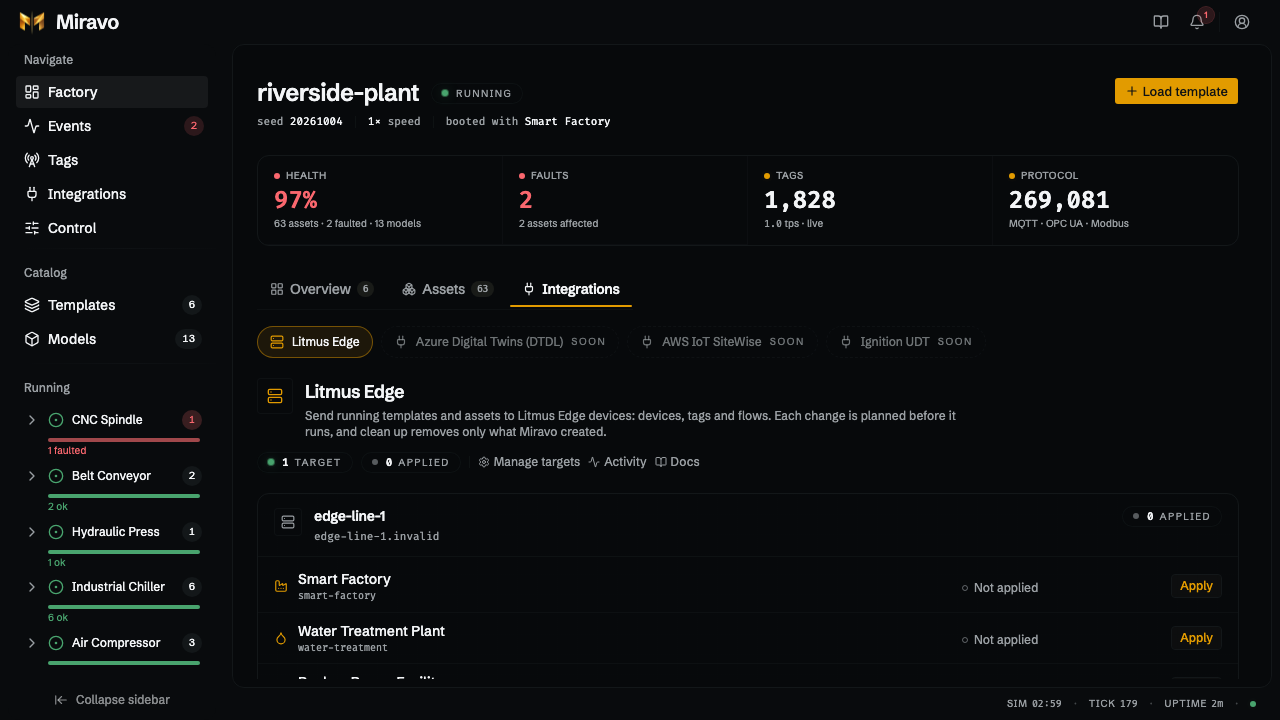
The panel header shows the number of targets, applied, and failed, with links to Manage targets (this page), Activity, and Docs.
Deployments has one card per target. Each card lists every running template and every standalone asset as a row with its status:
- Not applied: nothing from this factory is on the target for that row.
- Applied with the time, or Failed with the time and the error.
- Running… while an apply or clean up for that row is in progress.
Each row has an Apply button (Retry after a failure). Its ⋯ menu offers Re-apply and Clean up. More than five standalone assets fold into one expandable row.
A No longer running section lists templates and assets that are still on the target from an earlier apply but are no longer running here. Each has a Clean up button. With no saved target, the tab shows an empty state with Add target, which opens this page. Below the cards, the operation stream shows live progress.
Apply only works on what is running: unloaded templates cannot be applied. Clean up removes what an earlier apply of that same template (or asset) created, and nothing else. Other templates' resources on the same target stay.
Review before anything runs
Apply and Clean up both open a review dialog that runs a dry run when it opens, so nothing is written until you confirm.
- A headline counts the changes, such as 20 to create · 3 to update, and a scope line shows what is covered (for example Devices, Models, Assets) and how many resources are already in place.
- A bar shows the proportion of each action.
- A callout lists skipped resources, such as ones another factory owns, with the reason.
- Below, groups for Create, Update, Replace, Delete, and Unchanged each expand by type: devices, twin models, and twin instances. A twin instance's device binding appears on its row, marked with an arrow to the device.
- Advanced sets the scope, the collision policy for resources Miravo did not create, and, for Apply, the host ports Litmus Edge should dial.
The confirm button states the outcome: Apply 23 changes, Re-apply anyway when nothing would change, or Clean up 23 resources.
Cleanup only removes what Miravo created
Resources that already existed on Litmus Edge are never touched. Markers include the factory name, so two factories using the same template on one target do not remove each other's resources.
Activity
Every apply and clean up, with its outcome and what it changed. Expand a row for details.
Litmus Edge quick start
The two-plant demo and one-command provisioning.
CLI: Litmus Edge
The same operations from the terminal.
Was this page useful?
Last updated on