 Miravo
Common Workflows
The Console workflows most people use: launch a template, watch an asset, trigger a fault, find a tag's address, change speed, and push a factory to Litmus Edge.
Each workflow takes a minute or less on a running factory.
Launch a template
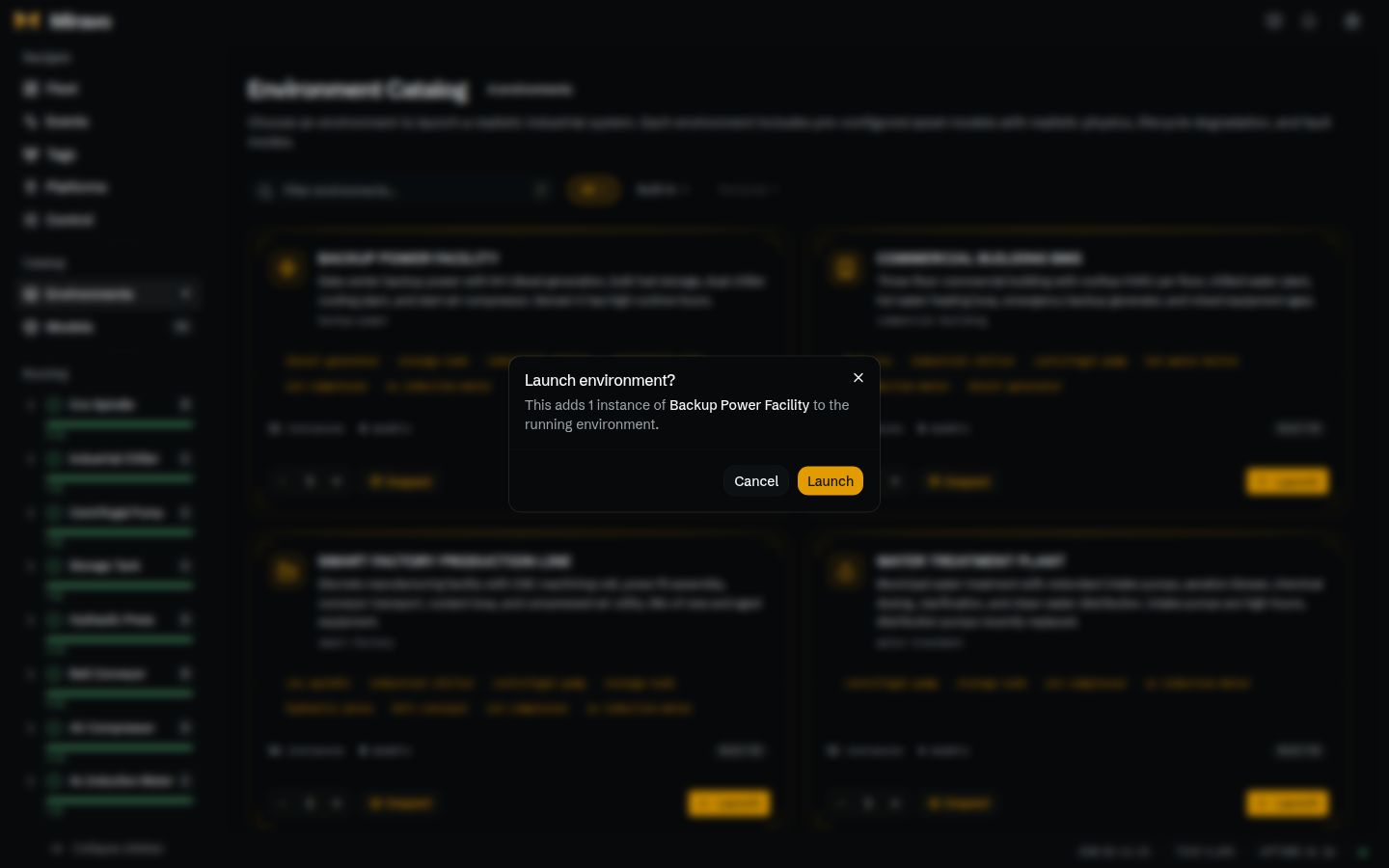
- Open Templates in the sidebar.
- Click Launch on a template card.
- Click Launch in the dialog.
- Open Factory. The template appears as a card with its counts and status. Inspect opens its sheet, starting on Live, and View assets lists its assets.
Launching never replaces what is running, and a template loads once. To remove one, click Unload on its card and confirm. To start over, reset the factory.
Watch an asset live
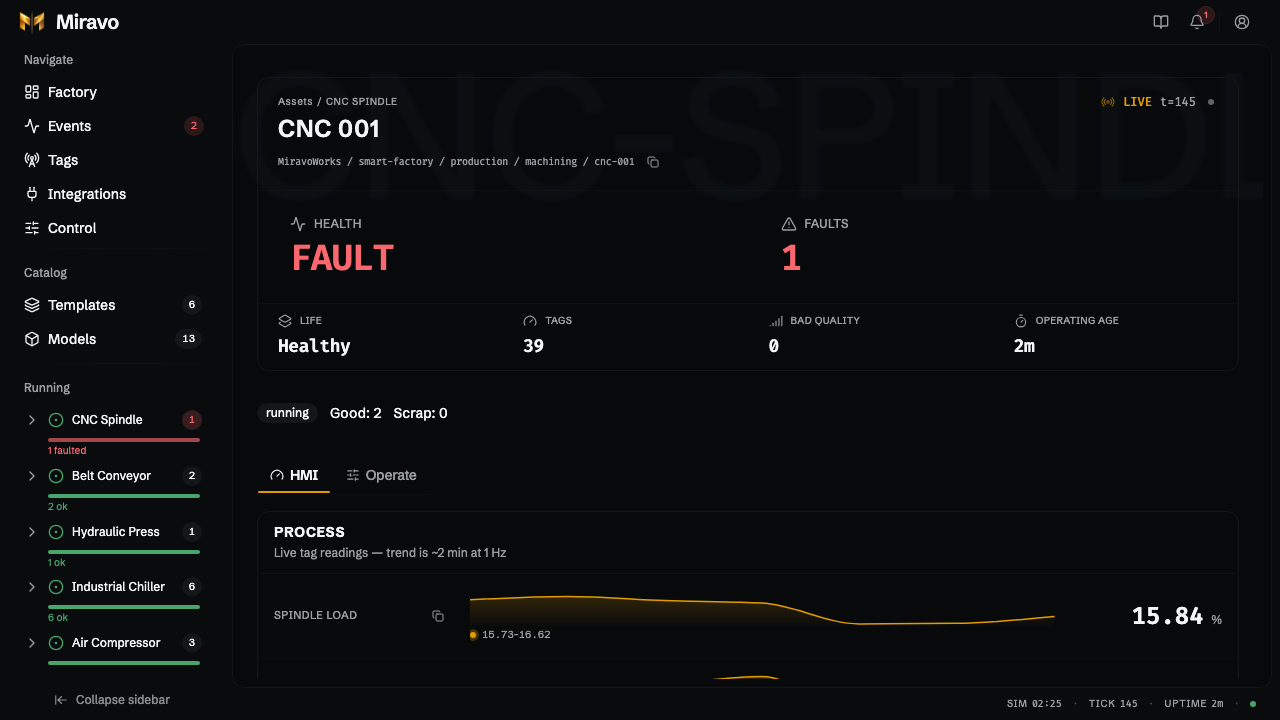
- Open Factory, then the Assets tab.
- Click an asset row.
- HMI shows live values with a two-minute trend.
- Operate lets you write setpoints, call methods, and trigger faults on this asset.
Trigger a fault
- Open Control, then Operate.
- In Fault Lab, pick an asset and a fault.
- Click Trigger.
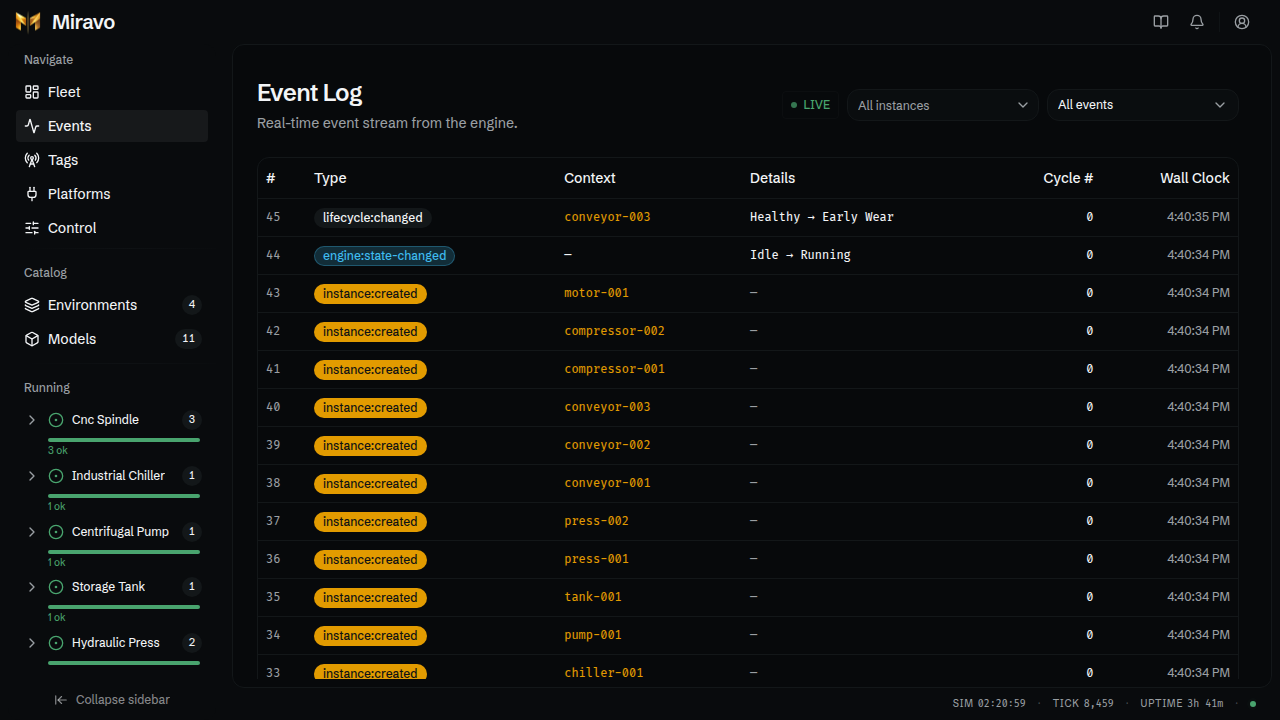
- Open Events to watch it, and any downstream effects, happen.
Most faults clear on their own. To stop one early, click Clear in Fault Lab.
Find a tag's address
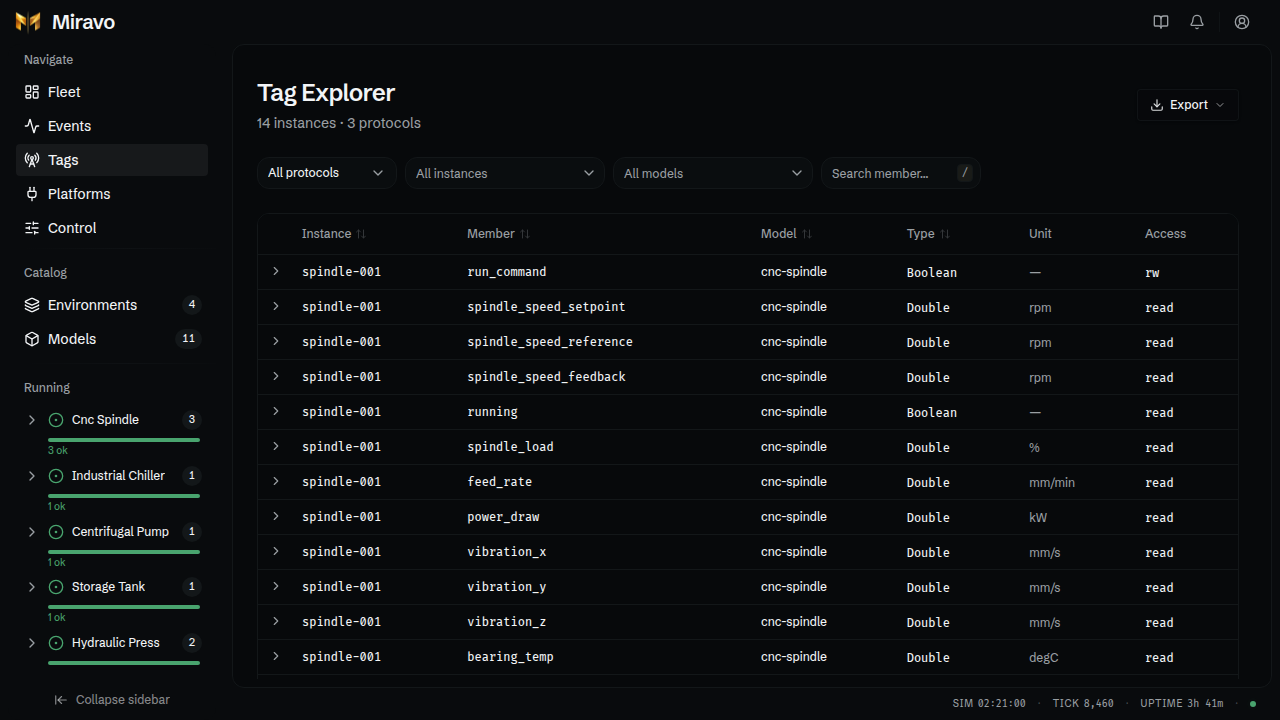
- Open Tags.
- Filter by protocol, asset, or name. Press
/to search. - Expand a row to see its MQTT topic, OPC UA NodeId, and Modbus register.
- Click Export, then Download CSV for the whole filtered list.
Pause or speed up
- Open Control. You land on Monitor.
- Click Pause to freeze the factory, or Resume to continue.
- Enter a speed, such as
60, and click Set. One real minute is now one simulated hour.
Speed changes simulated time only. Wear, schedules, and shifts follow it.
Send a factory to Litmus Edge
Add the target once:
- Open Integrations and click Add Target.
- Enter a label, the Litmus Edge hostname, the address Litmus Edge uses to reach Miravo, and an API token.
- Click Test connection, then Add Target.
Then apply a template:
- Open Factory, then the Integrations tab. Litmus Edge is selected.
- On the target's card, find the template's row and click Apply.
- Read the dry-run preview in the dialog. It shows what would be created or updated and runs nothing yet.
- Click the confirm button, such as Apply 20 changes. A panel shows progress until it finishes, and the row shows Applied with the time.
Miravo creates the devices, tags, Digital Twins models, and instances, and links them. To undo it, use ⋯ then Clean up on the row. Integrations covers the preview, cleanup, and history.
To skip the target and import a file instead, use Export for Integration… on Tags, or Export on a template's inspect sheet.
Was this page useful?
Last updated on