Console
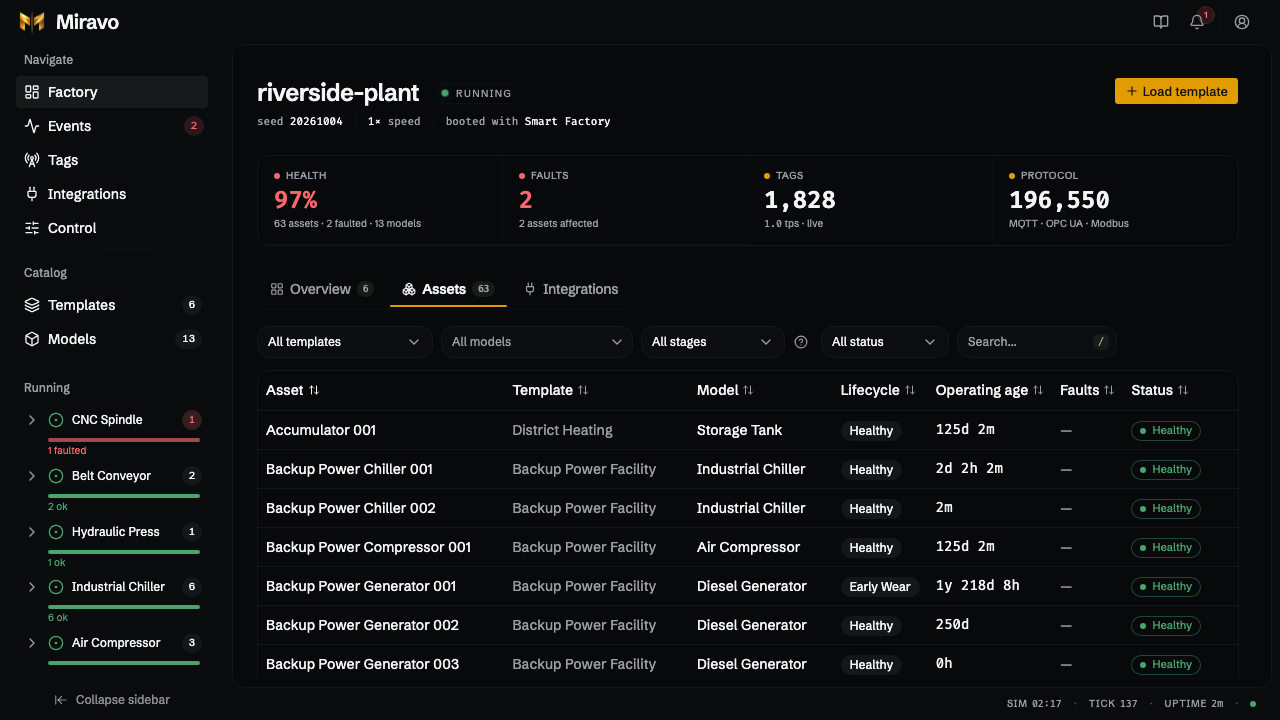
Miravo's embedded web dashboard — browse instances, view real-time metrics, stream fault and lifecycle events, and manage protocol adapters from the browser.
Miravo includes an embedded web console for monitoring and controlling environments through your browser. It is bundled into the Docker image and standalone binaries — no separate installation required.
Accessing the Console
The console is served by the admin HTTP server. Open your browser to:
http://127.0.0.1:8080In Docker, ensure port 8080 is mapped:
docker run --rm -p 1883:1883 -p 8080:8080 amineamaach/miravo:latestFeatures
Fleet
The default "/" page gives a real-time fleet overview:
- Fleet health percentage with healthy, faulted, and quarantined counts
- Active fault count across all instances
- Total instance count and number of distinct models
- Live tag count and tags-per-second throughput
- Per-adapter published message counts (shown at the bottom of the page)
Instance Detail
Select an instance to inspect its current member values, parameters, lifecycle stage, and active faults. The status strip shows operating age, which includes any template-seeded starting_hours plus elapsed environment runtime.
Events
The /events page streams runtime events in real time:
- Fault triggers and clears
- Lifecycle stage transitions
- Instance creation and removal
- Engine state changes
- Adapter enable/disable events
Alerts
The header now includes an alerts-only operator inbox:
- Warning and critical alarms derived from live runtime counters and events
- A persistent fleet-fault warning while active faults remain latched
- A persistent critical banner when an active critical alarm exists
Clearhides a live alert row immediately and keeps it hidden until that condition clears once- Session-local recent alert history for non-acknowledged alarms that clear on their own
The bell is intentionally separate from /events: alerts are action-oriented operator signals, while /events remains the chronological runtime log.
Tags
The /tags page shows a unified tag manifest for running adapters: per-protocol columns (MQTT topic, OPC UA NodeId, Modbus register) with filtering and copy-friendly cells.
Use Export for Platform to download platform-ready tag lists. Litmus Edge is available now: enter the DeviceHub device name, choose which enabled protocols to include, and download a CSV formatted for bulk import—matching what miravo export le-tags produces from the CLI.
Catalog — Model & Template Export
The Catalog page lists available models and templates. On each model's inspect sheet, the Export section offers YAML download and platform export: select Litmus Edge Digital Twins to download a file ready to import directly into Litmus Edge. On template inspect sheets, the Platform Bridge section exports a single template JSON ({id}.le-template.json) containing all DeviceHub devices, Digital Twins models, and instance wiring — downloaded directly to your machine and ready to import into Litmus Edge.
Platforms
The /platforms page manages external platform environments and lets you apply or clean up Miravo templates against them — directly from the console without needing CLI credentials on hand. Miravo currently supports Litmus Edge, with more platforms (Ignition, AWS IoT SiteWise, Azure IoT, and others) coming.
A status strip at the top shows the number of saved targets, total operation count, and the outcome of the last operation.
It has three tabs:
Environments — a registry of platform instances saved at ~/.miravo/platforms/targets.json on the server. Environment cards display the label, Litmus Edge API hostname, Source host (Miravo) (address Litmus Edge uses to reach your running Miravo environment), a source⭢target path, and the outcome of the last operation for that environment. Environments can be added, edited, or removed here. The API token is never returned to the browser after it is saved. When adding an environment, the platform selector shows Litmus Edge as the only available option; other platforms are listed as coming soon.
Operations — a unified apply and cleanup panel. A mode toggle switches between Apply and Cleanup. In both modes, select an environment and a template. In Apply mode, click Commit deploy to open a confirmation dialog. Optionally tick Dry run only and click Preview changes for a dry-run plan table without deploying, or configure scopes and click Apply to execute. In Cleanup mode, optionally tick Remove all Miravo managed resources to ignore template scope; click Commit cleanup to open the dialog, optionally tick Dry run only and Preview changes for a plan table without removing resources, or confirm Clean up to execute. While an operation is running, a floating stream panel appears at the bottom of the page with live progress by phase.
Activity — a persisted audit trail of all apply and cleanup operations, sourced from ~/.miravo/platforms/operations.jsonl. Entries are grouped by date. Expand any row to see a run-context block (scope, filters, duration, outcome counts) and a resource breakdown by phase (DeviceHub tags, DT models, twin instances, parameter sync). Filter by operation type, status, or environment; search by template or environment name. Load more fetches older entries (offset pagination).
Environments saved here are also available to the CLI via miravo platforms target and the --target flag (see Litmus Edge — Saved Targets).
Control
The /control page provides runtime controls and protocol management.
It includes protocol cards for registered adapters such as MQTT, OPC UA, and Modbus:
- Enable/disable toggles
- Live metrics (published messages, errors, health state)
- Configuration details (port, host)
- Port availability warnings
- Modbus register map table with pagination, instance filtering, and member search
The console also uses live core counters from the engine stream for operator monitoring, including throughput, quarantine count, engine error count, tick overruns, and circuit-breaker trips.
Catalog
The console also exposes a /catalog route for browsing available built-in and local content.
Authentication
The console requires login. Default credentials are admin / admin.
On first login with the default password, you will be prompted to change it. Changed passwords are saved to ~/.miravo/auth.json and persist across restarts.
To set a custom password via environment variable:
MIRAVO_ADMIN_PASSWORD=my-password miravo startConfiguration
The console is served automatically when the admin server starts. No additional configuration is needed.
The admin server binds to 0.0.0.0 (all interfaces) by default. To restrict to a specific interface:
miravo start --admin-host 192.168.1.100API routes (/healthz, /metrics, /state, /commands, /auth/*, etc.) take precedence over console routes.
Was this page useful?
Last updated on
Miravo